Maintenance Request Form
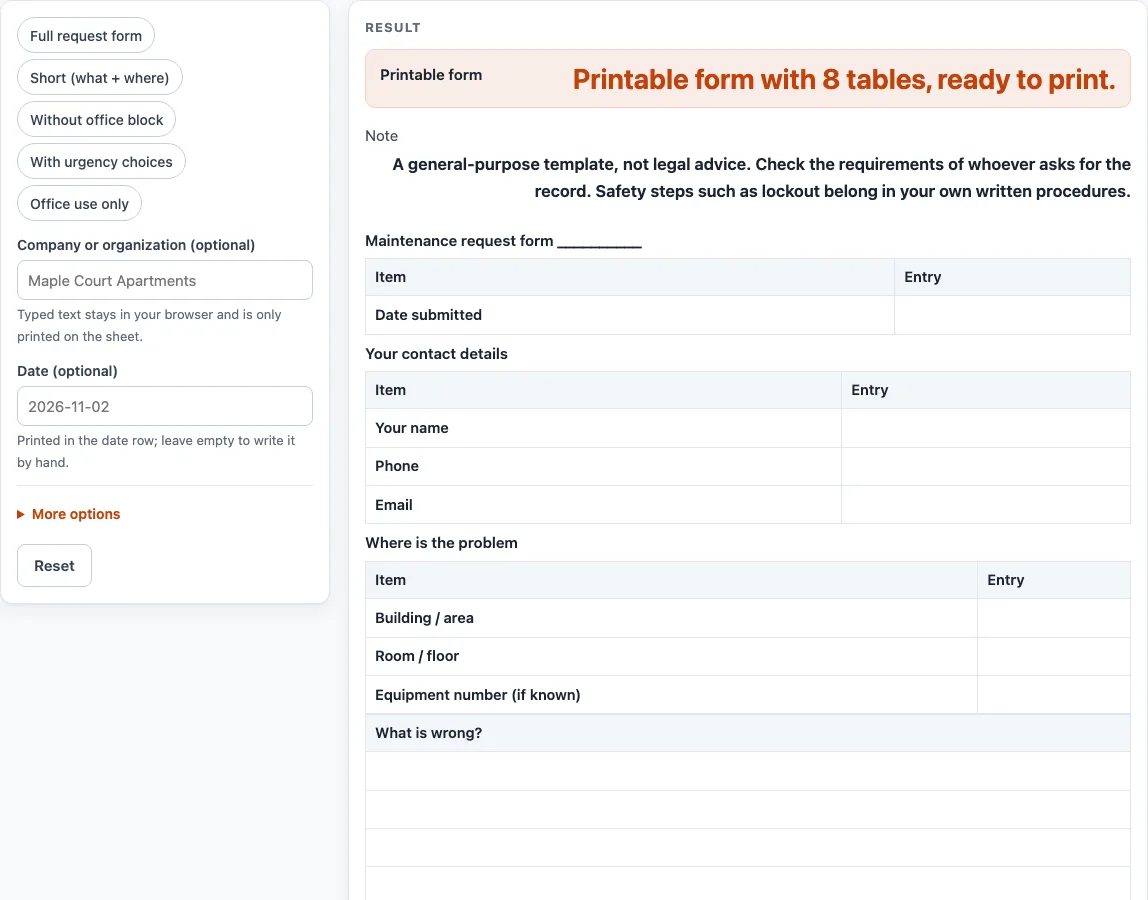
Choose which parts of the request form to include, then print it for tenants, staff or visitors, or download the same sheet as a CSV.
Recent
Your last 10 settings, saved only in this browser. Nothing is uploaded.
How to use the maintenance request form tool
- Open “More options” and check which sections are switched on. All sections are on by default.
- If you want them in the header, type a date in “Date (optional)” and a name in “Company or organization (optional)”. Empty fields print as blank lines to write on.
- In “Your contact details”, enter your name, phone number and email address.
- In “Where is the problem”, enter the building or area, the room or floor, and the equipment number if you know it.
- Describe the problem in “What is wrong”. The sheet has four lines for this.
- In “Urgency choices”, tick one of Urgent, Soon or Routine.
- In “Access notes”, write keys, codes or who to ask. Add the best time to come.
- Leave the “For office use block” for the staff who receive the request, or switch it off in “More options” if you do not need it.
- Sign the “Requester signature” row.
- Click the Print button, or click “Download as CSV (opens in Excel)”.
You can also pick a preset: “Full request form”, “Short (what + where)”, “Without office block”, “With urgency choices” or “Office use only”. The “Printable form” output shows the result line “Printable form with {n} tables, ready to print.”
What is a maintenance request form?
A maintenance request form is a written record that someone uses to report a problem to the people who repair, service or inspect a building or piece of equipment. It sets out what is wrong, where it is, how urgent it seems and how the person doing the work can get access.
What should a maintenance request form include?
A public university facilities request page says its form asks for contact information, a description of the work and a priority, plus the location of the work and an equipment number. This tool’s fields follow that general shape. The exact layout and the urgency wording are the tool’s own choices, so they may not match the form your building team uses.
Why does urgency wording differ between forms?
The urgency wording on this sheet is the tool’s own choice, and the sheet gives no response times for any of it. The “Urgency choices” section has three tick boxes: Urgent, Soon and Routine. Other forms may use different words, so use the wording that the receiving office understands, and ask that office which one it prefers if yours differs. The sheet does not say how quickly any level will be handled.
Who fills in the office use section?
The “For office use only” fields are for the people who receive and schedule the request: Date received, Assigned to, Work order no., Scheduled date and Office notes. The requester leaves these blank. The sheet records what the requester reports. It does not decide how serious the problem is or what will be done about it.
Does the form cover safety steps?
No. The sheet does not decide whether a repair is safe or what to do about a hazard. It is a general-purpose template and is not legal advice. Check the requirements of whoever asks for the record, and keep any lockout or other safety steps in your own written procedures.
How do I keep a copy of the request?
Print the sheet with the Print button, or download it with “Download as CSV (opens in Excel)”. Both are made in your browser, and nothing is uploaded or saved on the site, so keep your own copy. Copy the printed sheet into another document if you need a Word version.
Sources (checked 15 October 2026): facilities.uky.edu
Worked examples
| Input | Result |
|---|---|
| 7 sections switched on | 8 tables including the header |
| 7 sections switched on | 8 tables including the header |
| 3 sections switched on | 4 tables including the header |
Calculated by the tool above; open it with the same values to see each step.
Frequently asked questions
Is this maintenance request form free?
Yes. It is free to use, runs in your browser and needs no sign-up.
Is my information stored or uploaded?
No. Nothing you type is stored or uploaded. The sheet is built in your browser.
Can I edit the sheet after I print it?
Yes, write on the printed copy. If you want to change the text itself, open the CSV in Excel or copy the printed sheet into your own document.
What does the result line mean?
“Printable form with {n} tables, ready to print.” tells you how many tables are on the sheet with your current settings. It is a count only and does not check the content.
Does the form tell me how quickly the work will be done?
No. The urgency tick boxes (Urgent, Soon, Routine) have no response times. Ask the office that receives the request when it expects to act.
Can I remove the office block?
Yes. Switch it off in “More options”, or choose the “Without office block” preset.
Does the request form have a priority row?
No. This page uses the “Urgency choices” section with Urgent, Soon and Routine instead. The only header line is the submission date.
Related tools
Construction Work Order Template: Use it when the job is a building project or construction task.
HVAC Work Order Template: Use it to record heating, ventilation and air conditioning work.
Maintenance Work Order Template: Use it to record the work done after a maintenance request is accepted.
Plumbing Work Order Template: Use it to record pipe, drain and fixture work.
Preventive Maintenance Checklist: use it for routine upkeep tasks that repeat.
Preventive Maintenance Schedule: use it to lay out recurring maintenance tasks.