Preventive Maintenance Schedule
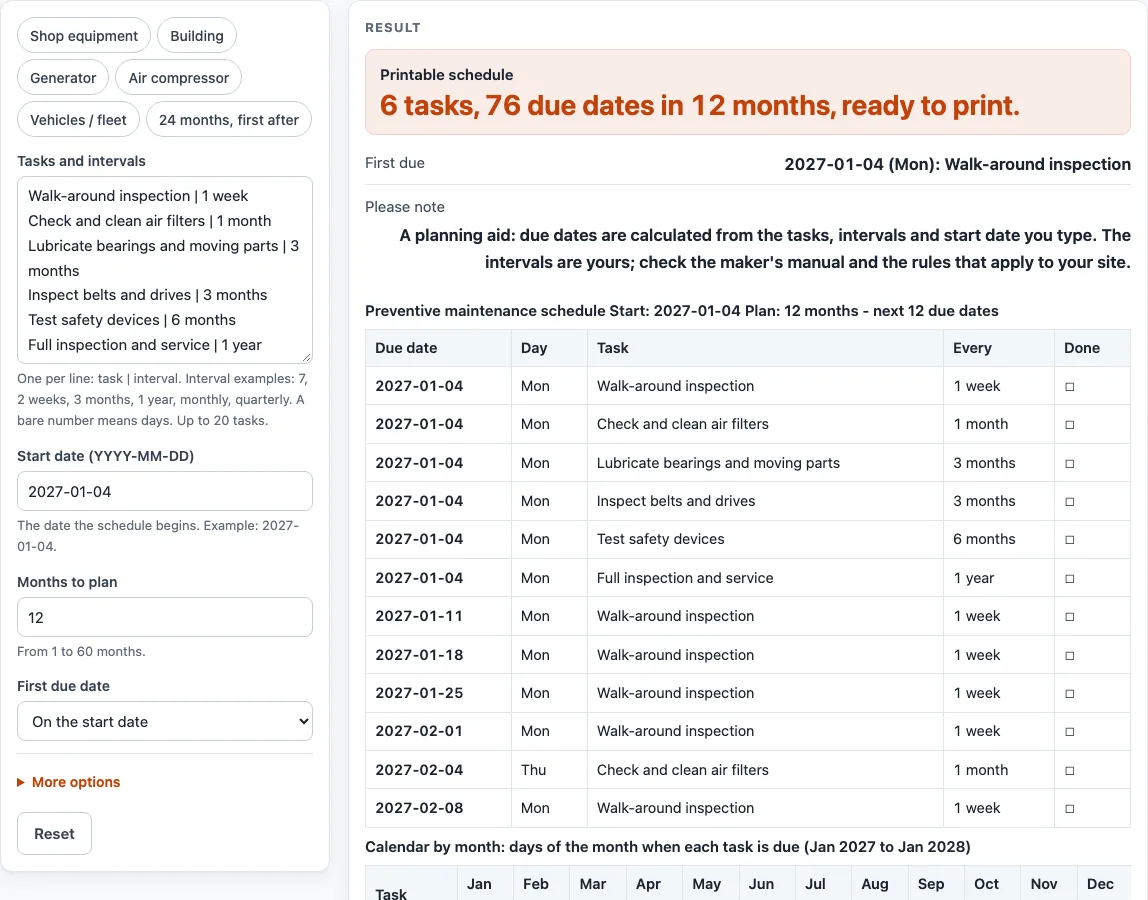
Type each task with its interval, the start date and the months to plan; you get the next 12 due dates, a month-by-month calendar and a full list to print or download as CSV (a maintenance schedule template with real dates).
Recent
Your last 10 settings, saved only in this browser. Nothing is uploaded.
How to use the preventive maintenance schedule
- Replace the example lines in “Tasks and intervals” with your own, one per line, in the form task | interval. For example: Check and clean air filters | 1 month. You can type up to 20 tasks.
- Write each interval as a whole number with days, weeks, months or years, such as 6 weeks or 1 year. You can also use daily, weekly, biweekly, fortnightly, monthly, quarterly, semiannual, annual or yearly. A bare number means days.
- Enter the “Start date (YYYY-MM-DD)”, for example 2027-01-04. Use a real calendar date.
- Set “Months to plan” from 1 to 60. The default is 12.
- Choose “First due date”: “On the start date” lists the start date as the first due date. “One interval after the start date” begins one interval later.
- Under More options, change “Title” if you want a different heading at the top of the sheet.
- Check the first due dates and the calendar grid, then read any warning shown above the results.
Use your browser’s print function to print the schedule. Select “Download as CSV (opens in Excel)” to save all the tables as preventive-maintenance-schedule.csv. The presets “Building”, “Generator”, “Air compressor” and “Vehicles / fleet” replace the tasks and title with a ready-made set, and “24 months, first after” sets 24 months with the first due date one interval after the start.
How does a preventive maintenance schedule work out each due date?
Each due date starts from your start date and moves forward by the interval of each task. Days and weeks are added as whole days, so a weekly task falls exactly seven days after the one before it. In a 12-month plan starting 2027-01-04, a weekly walk-around produces 53 dates, ending on 2028-01-03.
Months and years are counted from the start date, not from the previous due date. If the day of the month does not exist in a later month, the date moves back to that month’s last day. For example, a start date of 2028-01-31 with a “1 month” interval and a 6-month plan gives 2028-01-31, 2028-02-29, 2028-03-31, 2028-04-30, 2028-05-31 and 2028-06-30. Because each date is counted from the start, the schedule does not drift later in the year. A date is listed while it falls before the same date after the number of months you planned.
Why does the calendar grid show a count instead of every due date?
The monthly grid marks the days of the month on which a task is due. When more than six dates fall in one month, the grid shows a count such as “31 due” so the page stays readable. If your plan ends on a day in the following calendar month, that month is added as an extra column. Plans longer than 12 months are split into tables of 12 months each.
The page also sets limits. It uses only the first 20 tasks if you type more, and it caps the plan at 60 months. If the schedule has more than 400 due dates, the full list shows the first 400 rows, while the grid still counts every date. A warning appears in each case.
Who decides how often each task is due?
You do. The page does not recommend any interval, so every timing you see comes from the numbers you type. The only outside guidance it refers to is the advice to use the maker’s manual and to maintain more often if it pays. The “Please note” text on the page says the due dates are a planning aid calculated from what you type, and that the intervals are yours: check the maker’s manual and the rules that apply to your site. The page does not say which interval is right for any task.
Sources (checked 15 October 2026): energy.gov · www1.eere.energy.gov
Worked examples
| Input | Result |
|---|---|
| 6 tasks, 12 months | 76 due dates |
| 2 tasks, 12 months | 11 due dates |
| 3 tasks, 6 months | 36 due dates |
| 2 tasks, 24 months | 12 due dates |
| 1 tasks, 3 months | 4 due dates |
Calculated by the tool above; open it with the same values to see each step.
Frequently asked questions
Is a preventive maintenance schedule the same as a checklist?
No. A schedule shows when each task falls due, while a checklist is where you record what you find when you carry the task out. A blank checklist records results and does not decide anything.
Can I use the default tasks as a maintenance schedule template?
Yes, but treat them as example values, not recommendations. Replace them with the tasks and intervals that match your equipment, and download the CSV to keep a copy.
Does the tool store or upload my tasks?
No. Everything runs in your browser, and nothing you type is stored or uploaded.
What happens if my start date is on the 31st of a month?
The page moves the date back to the last day of shorter months, then returns to the 31st when a longer month follows. A start of 2028-01-31 with a 1-month interval gives 2028-02-29, then 2028-03-31.
Why does my interval give an error?
Each line needs a task, a bar (|) and an interval. The interval must be a whole number with days, weeks, months or years, or one of the listed words. A bare number is read as days, so write “1 month” if you mean monthly.
What does “One interval after the start date” do?
It leaves out the start date and lists the first due date one interval later. For a weekly task starting on 2027-01-04, the first due date becomes 2027-01-11. “On the start date” lists the start date itself.
Related tools
Air Compressor Maintenance Checklist: use it to record air compressor inspections as you complete them.
Generator Maintenance Checklist: use it to record generator checks and tests on site.
HVAC Preventive Maintenance Checklist: use it to note heating, ventilation and cooling inspections.
Preventive Maintenance Checklist: use it to record general equipment checks against the tasks on your schedule.
Forklift Maintenance Checklist: use it to record forklift upkeep checks as you do them.
Maintenance Work Order Template: use it to write up a single maintenance job once a task falls due.